Locate and tap the App Store icon on your iPhone’s home screen.
Search for LeadConnector:
Tap the search bar at the bottom of the screen.
Type “LeadConnector” and tap the Search button on your keyboard.
Download the App:
Find the LeadConnector app in the search results.
Tap the Get button next to the app.
If prompted, confirm your download with Face ID, Touch ID, or your Apple ID password.
Open the App:
Once the download is complete, tap Open to launch the LeadConnector app.
Alternatively, find the LeadConnector icon on your home screen and tap to open.
For Android Users
Open the Google Play Store:
Locate and tap the Google Play Store icon on your Android device’s home screen or app drawer.
Search for LeadConnector:
Tap the search bar at the top of the screen.
Type “LeadConnector” and tap the Search button on your keyboard.
Download the App:
Find the LeadConnector app in the search results.
Tap the Install button next to the app.
The app will begin downloading and installing automatically.
Open the App:
Once the installation is complete, tap Open to launch the LeadConnector app.
Alternatively, find the LeadConnector icon in your app drawer or home screen and tap to open.
Getting Started
Log In:
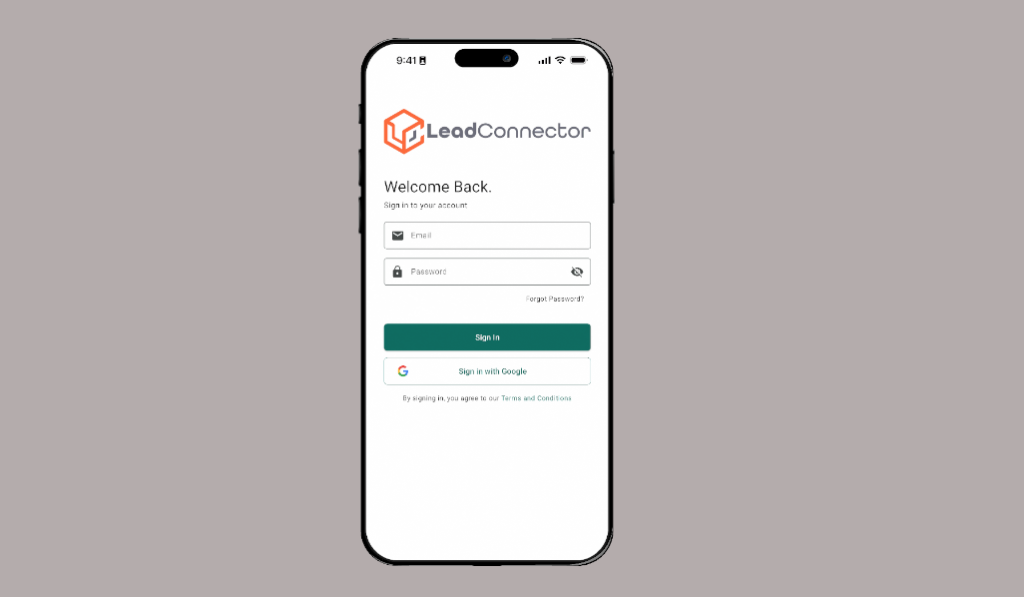
Open the LeadConnector app.
Enter your login credentials and tap Sign In.
You will be sent a 6-Digit Verification code to the email that is used during sign in. Check that email to gather the code and paste/type the code into the verification box to complete sign in